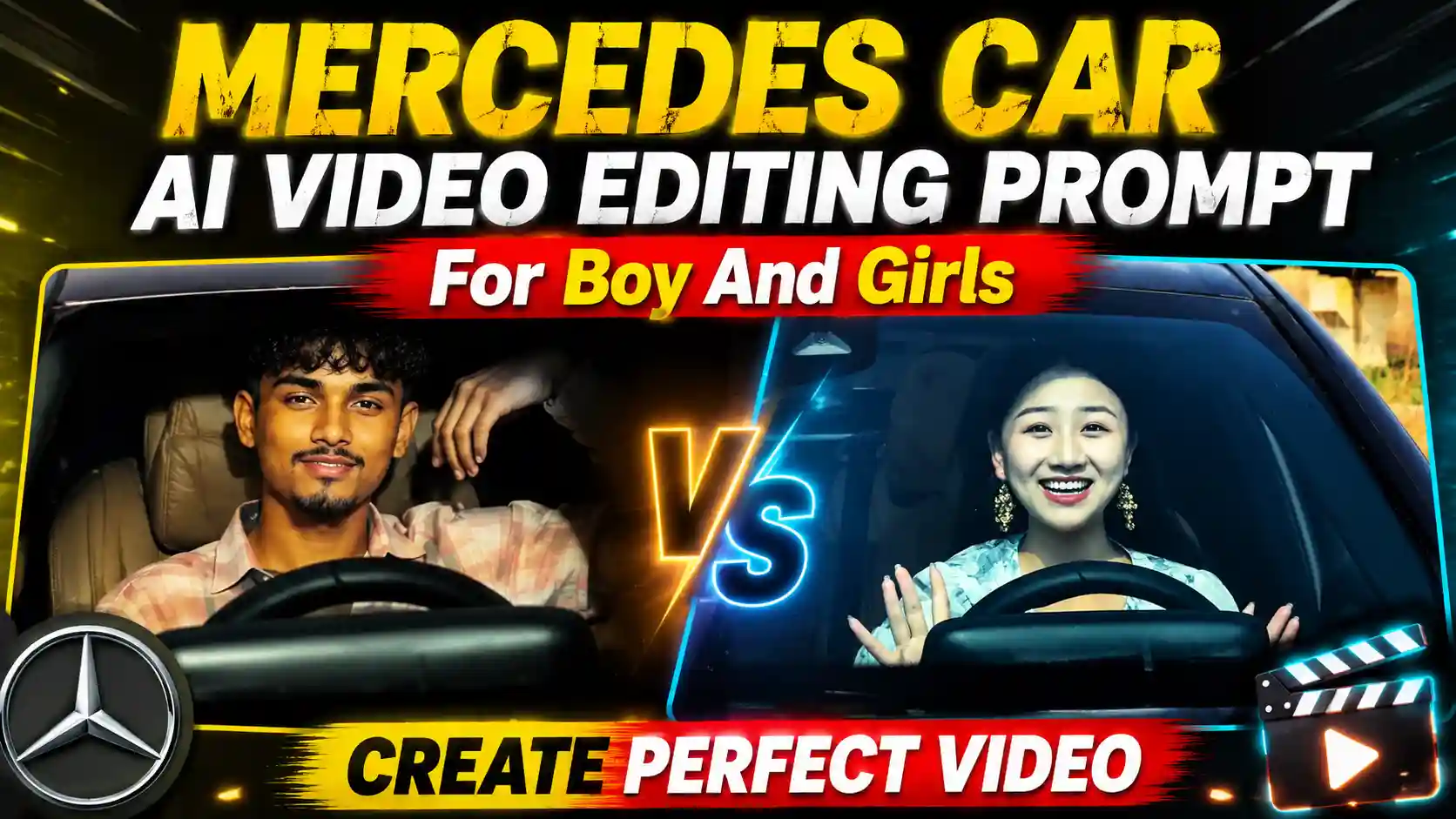
Mercedes Car Driving AI Video Editing Prompt – So, in the previous article, I told you about a simple way to make a Mercedes car AI video using Flow AI, but this time we are going to make the video in a slightly different way. In this method, we will use a reference video along with your own photo, so the AI can understand the type of video we want to create. This is useful because sometimes when we only give a photo and a normal prompt, Flow AI creates the video in its own style. The car, camera movement, expressions and driving action can look different every time. Because of this, the final video may not look exactly like the viral videos we see on Instagram. So, in this article, I am going to show you a different method where we will add the reference video as well as our own photo. After that, we will use a new prompt and tag our photo inside the prompt, so Flow AI can understand which photo we want to use for creating the video.
MERSEDES CAR VIDEO PROMPT
Why Use A Reference Video For This AI Video?
The main reason for using a reference video is that we want our final video to follow the same type of movement and style. For example, if the reference video shows a person sitting inside a Mercedes, moving the steering wheel, stopping the car and then giving expressions while singing a song, we can use that video as a reference. Instead of explaining every small movement only through text, we are giving Flow AI an actual video to understand. This can make the process much easier. Our photo will be used for the person, while the reference video will help the AI understand the type of action, camera movement and overall scene that we want. This is why this method can give a more similar result compared to using only a normal text prompt.
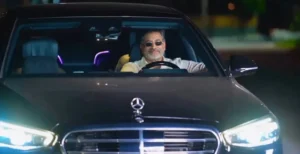
REFERENCE VIDEO
How To Make The Mercedes AI Video
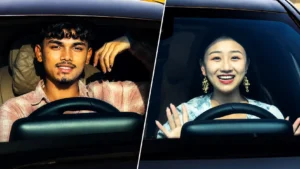
So, first of all, open Flow AI on your device and start a new video. After opening it, add the photo that you want to use for your Mercedes AI video. Make sure that your face is clearly visible in the photo and the picture has good quality. After adding your photo, you also have to upload the reference video that I have provided in this article. This reference video will help Flow AI understand what type of video we want to create. Now, after adding both your photo and the reference video, copy the new video prompt that I have given below and paste it into Flow AI. While adding the prompt, make sure that you tag the photo that you uploaded earlier, because this will tell Flow AI which photo it needs to use for creating the person in the video. Once everything is added properly, simply click on the send button and let Flow AI generate the video. After some time, your Mercedes AI video will be ready.
FLOW AI
What You Need Before Starting
Before you start making the video, you only need a few things. First, you need your own photo in which your face is clearly visible. Try to use a photo where your face is not covered and the picture is not too blurry. Second, you need the reference video that you want to use for this AI video. I have also provided the reference video in this article, so you can use the same video if you want to create a similar result. And the last thing you need is the new video prompt that I have given below. Once you have these things ready, you can directly start the process in Flow AI.
Why This Method Can Give A Better Result
The main benefit of this method is that we are giving Flow AI more information than before. In the previous method, we were mainly depending on the written prompt, so the AI had to imagine the camera movement, car scene and actions by itself. This time, we are also giving it a reference video. So, it has a visual example of the type of video we want. At the same time, we are adding our own photo and tagging it in the prompt. This makes the instructions more clear. The result can still vary because AI-generated videos are not always exactly the same, but this method can help you get a result that follows the reference video more closely.
Try Different Photos If The Result Is Not Right
Sometimes the first result may not come exactly the way you expected. Don’t worry about that. You can try another photo where your face is more clearly visible. You can also generate the video again with the same reference video and prompt. If the face is looking strange or the body position does not match properly, changing the original photo can sometimes help. The important thing is to keep the reference video and your photo properly selected before generating the video.
Final Words
So, this time we are using a slightly different method to create the Mercedes AI video. Instead of only giving Flow AI a photo and a normal prompt, we are adding both a reference video and our own photo. After that, we tag the photo inside the new prompt so Flow AI knows exactly which image we want to use. This gives the AI a better idea about the type of video we are trying to create. If you were wondering how to make those Mercedes videos that look similar to the ones going viral on Instagram, you can follow the complete steps given above. Just add your photo, upload the reference video, copy the prompt, tag your photo and generate the video.