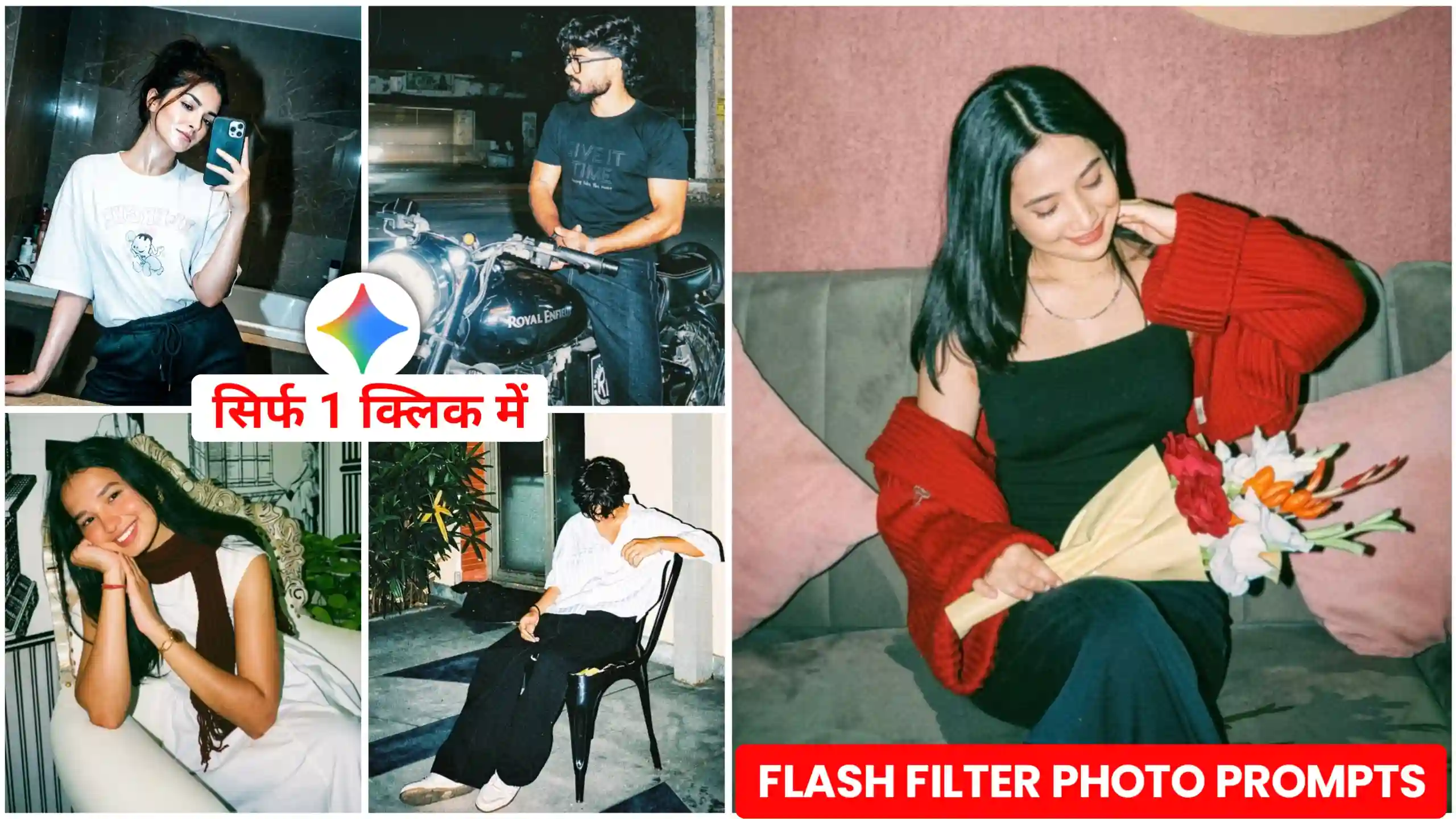
Many people on social media are generating and uploading photos with flash filter. This photo looks aesthetic type. Due to this, a kind of flashlight effect is added to our photo. As friends, you must have seen that whenever we click a photo with our phone’s camera at night, if we click the photo by turning on the flashlight of the phone, then a different kind of flash type effect comes in our photo. The same way is seen in these photos also, but friends, the only difference is this. This flash effect increases the brightness of our photo even more, and it gives a very luxurious and cinematic type feel. Due to this, our photo looks completely different and unique. So friends, in today’s article, we will tell you how you can create this kind of cinematic style flashlight photo. See, many people are creating it using Instagram also. Friends, we are going to use Google Gemini here, so all you have to do is. You have to read this article from beginning to end, we are going to understand everything.
Flashlight Filter Ai Photo Editing Prompt
Look, the flashlight effect filter works so much that it works to convert our photo into the trending cinematic flash style. Now see, as we have told you here that you are going to use Google Gemini, for this, in this prompt, we have written all that will help Google Gemini in creating your photo in this way, because this prompt will tell Google Gemini what effect to add inside our photo. Here we are using Google Biography. We are doing this because it will generate our photo in a realistic manner. If we had used chatgpt or any other application here, the result would not have been that accurate. So, if you want, you can also use Google Gemini’s website. Otherwise, if you have Google Gemini’s application, then you can use that also. For now, here we will tell you about the website and how to create it.



create your photos
How to add flashlight effect to photo with gemini?
If you want to add this type of flash filter effect to your photo from Google Gemini, then for this you have to first click one of your photos and try to see you completely in the photo. After that, friends, you have to copy any one of the prompts given above. You have to do this according to your photo. After that, you have to click on the button named create your photo, which you will get to see on the top and bottom sides like you. If you click on it, you will go to the Google Gemini website, where first of all you will have to click on the plus icon and add one of your photos. After that, you have to paste it when prompted and then select the option of creating nano banana image. With this, friends, your photo will be generated in a more realistic manner. After doing so much work, you have to send it. Now see, you will have to wait for a while. Your photo will be created and will come in a few seconds. You can easily save it in your phone’s gallery.
How to apply flashfilter on Instagram
Look, if you guys want to create this type of photo using Instagram, in which this type of flash effect is added to your photo, then you can also do this, because most of the people are creating it from Instagram itself. Look, if you do not know, then let me tell you that not everyone has got this feature on Instagram yet. Even if many people have got it, then it is not working, so if it is working for you, then let me tell you, friends, all you have to do is to open your Instagram. Then you have to add any of your photos by clicking on the story icon. After that, you get to see a restyled icon on the right side, you have to click on it. After that, on the bottom side, you get to see many filters. Then you have to slide a little to the right, and there you will get to see a filter named Flash III. Just click on it, and then wait until the effect is applied a hundred percent. As soon as you wait, friends, your photo. When this flash effect filter will be applied, you can also add this filter to your photo from Instagram in this way.
Conclusion
In this way, you can easily create a flashlight effect photo on social media and can give a cinematic and aesthetic look to any of your photos. Look, I have told you both the methods here. If this flashlight feature is available in your Instagram, then you can use it too, but if it is not available in yours, then friends, you can also generate this photo using prompts from Google Gemini. Now it is your choice, whatever you like, you can do it. You can do it. Friends, we have tried to explain everything to you here, and we hope that you would have liked our today’s article very much. If you liked it, then please tell us by commenting below. This gives us a lot of motivation, and if you want to ask us any question, then you can also message us on our Instagram. The user name of our Instagram is anupsagar.editz.